Managing Document Types
Last updated: June 2, 2026
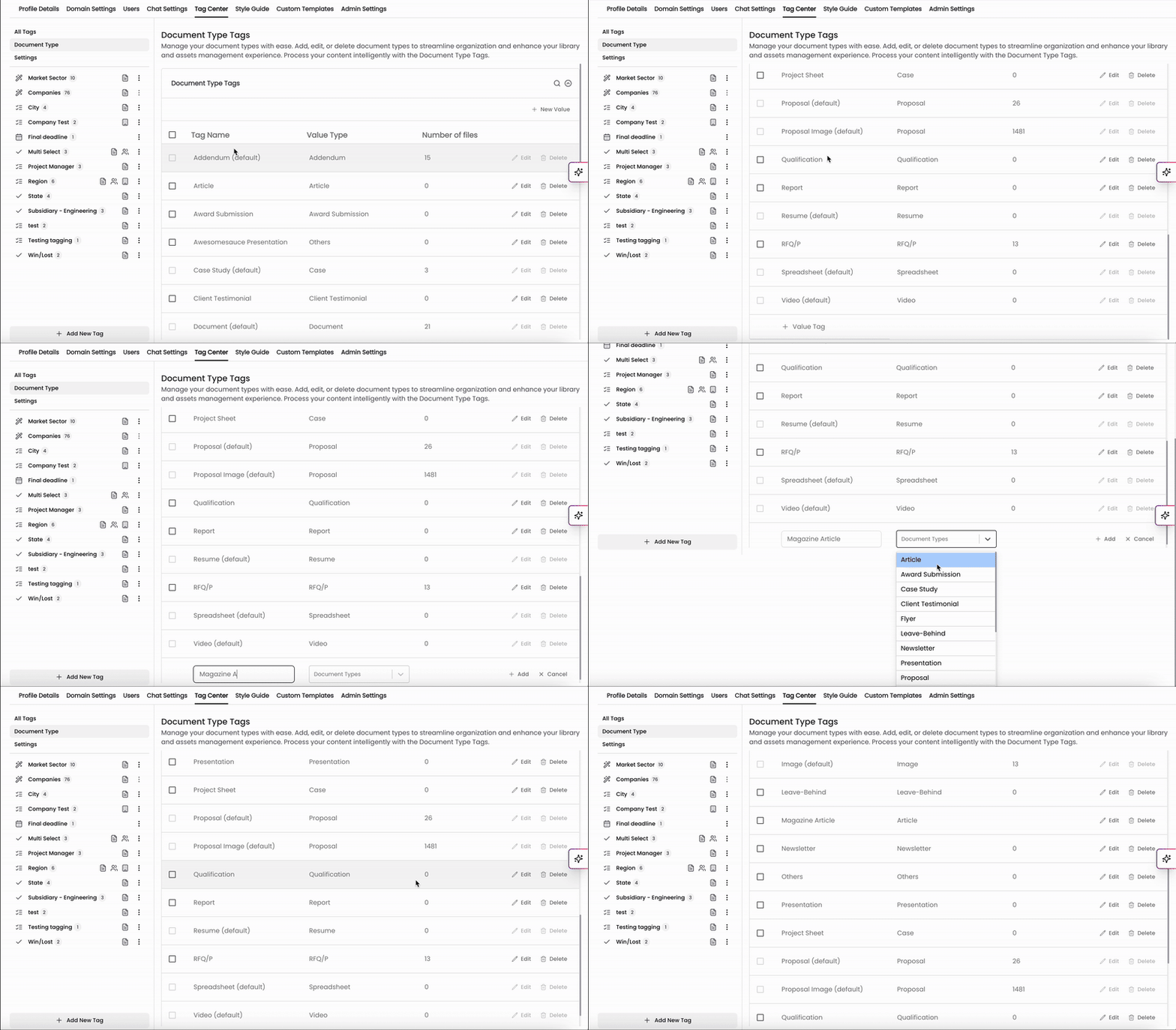
The Kantiv platform categorizes your uploaded files into document types to decide the best method to extract content into your library. You can add new Document Types or delete existing ones through the Tag Center in Settings.
Understanding Document Types
When you upload files into the Files tab in Kantiv, you’re building your company’s Kantiv brain. It’s important to ensure documents have the correct type. The document type tells Kantiv what type of document you’re uploading, which determines how (and whether) content from that document is extracted into your library.
Examples
Different document types follow different extraction rules:
Document type | How they're used | Where they go |
Proposals | Kantiv extracts project details, resumes, and company information from proposals. | This information populates the Library in the People, Projects, Companies, and Opportunities tabs. |
Resumes | Any document type as a resume is processed by the resume extraction pipeline. | The content is added directly to individual People profiles in the Library. |
Case Studies | Kantiv recognizes case studies as examples of past completed projects. | They’re added to the Projects section in the Library. |
All Other Document Types | Any file that doesn’t fit the above categories is treated as a general document. | These documents don’t populate the Library, but their content is still fully searchable and accessible via the Chat feature. |
Why This Matters
Correct document type ensures that your Library is accurate, complete, and useful. Proposals feed your database of people, projects, and companies. Resumes enrich individual profiles. Case studies highlight proven work. Without accurate document types, your Kantiv brain won’t capture the right information, which can lead to gaps in your Library.
Adding a New Document Type
When viewing the Tag Center,
Click "Document Type" (towards the top left)
Click "+New Value" at the top or "+ Value Tag" at the bottom to populate fields to enter in a new Document Type.
Enter the name of the document type and categorize this using the Document Types dropdown menu.
Click "+ Add"
Editing or Deleting an Existing Document Type
On the document type page, you can click "Edit" to edit an existing document type in the list. You can also click "Delete" on the right side of the row to delete and remove a document type from the list.
Please note that your Kantiv account will come with document types pre-installed by default and some cannot be removed from your list.
You can always find more information on Content Management in our Support Center. Please send any questions or feedback to Support@Kantiv.com.