Tag Center: Managing Your Tags for Better Content Organization
Last updated: June 2, 2026
The Tag Center in Kantiv is a powerful feature that helps you streamline the organization and categorization of your content, making it easier to find and manage files across your platform. You can add, edit, and delete tags to keep your content neatly categorized and easily searchable. By using tags effectively, you can segment your content by client, document type, market sector, or any other custom values relevant to your business.
This article provides a comprehensive guide on how to navigate through the Tag Center menu with links to other article on how to enhance your library and asset management experience.
Accessing the Tag Center
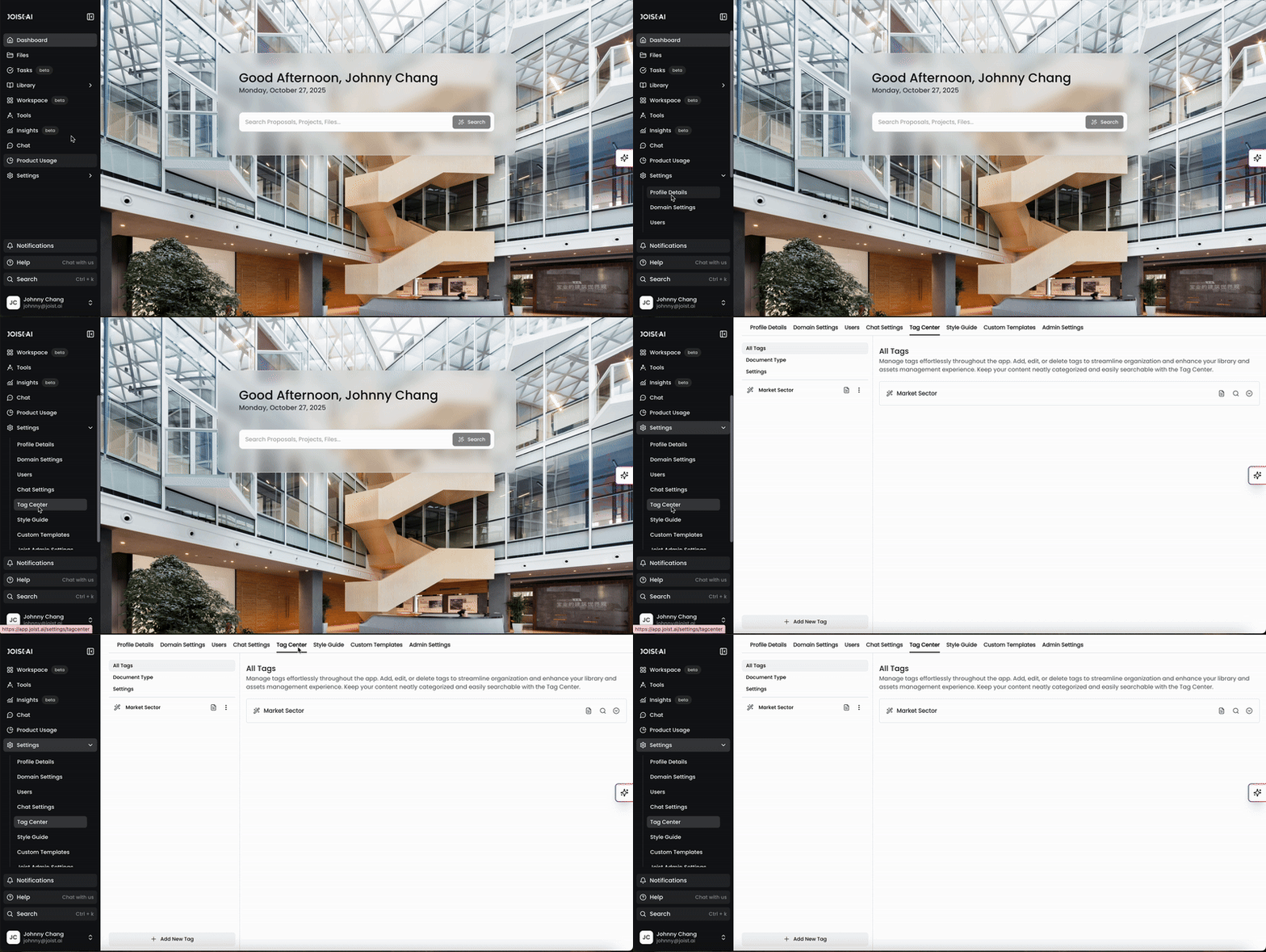
You can access the Tag Center in your settings menu. Click Settings in the menu and then click Tag Center.
Alternatively, you can Click here to access the Tag Center.
Tag Center Menu Options
The Tag Center has three default menu options: All Tags, Document Type, and Settings. You can toggle between these on the top left hand side of the page.
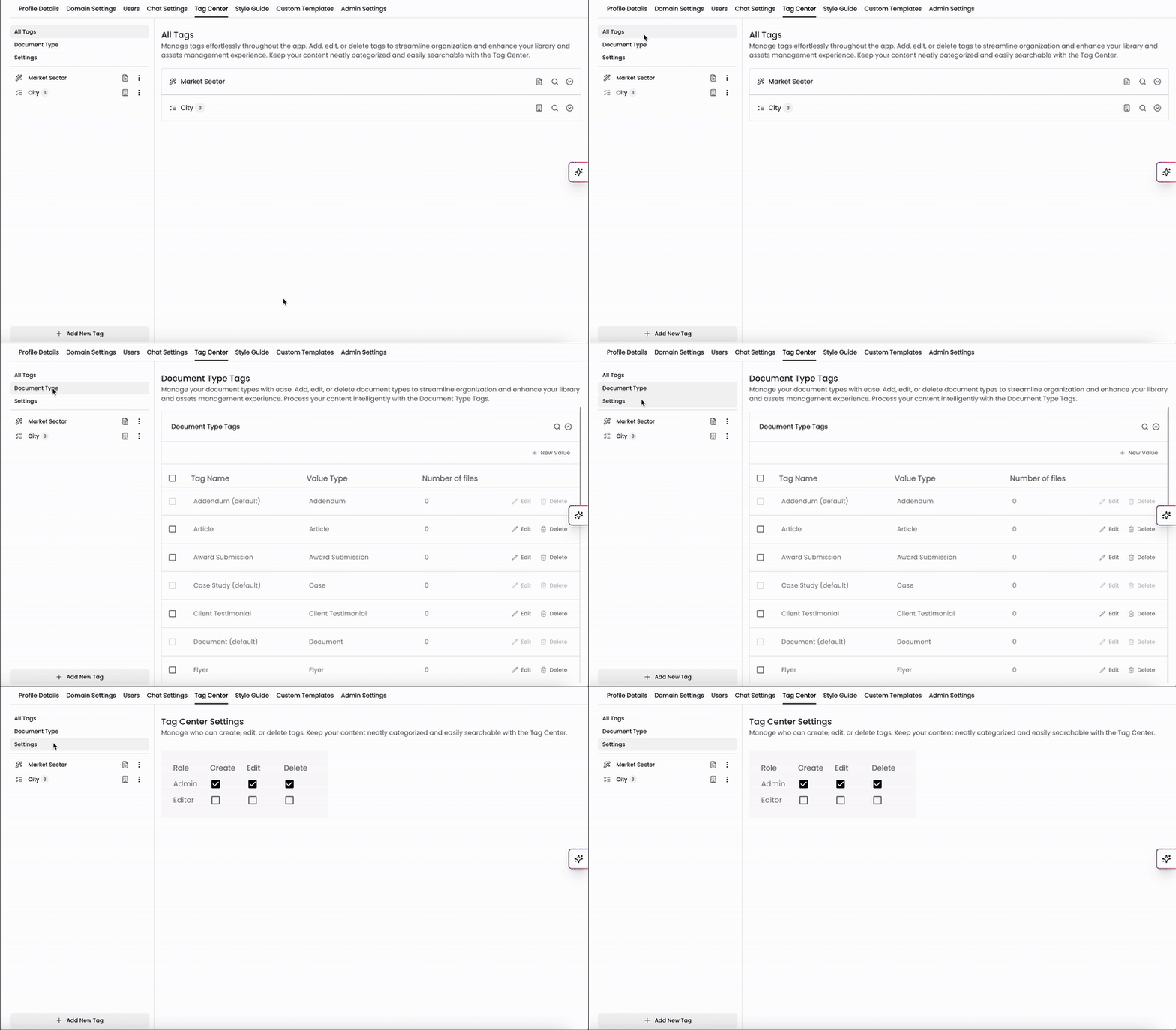
All Tags
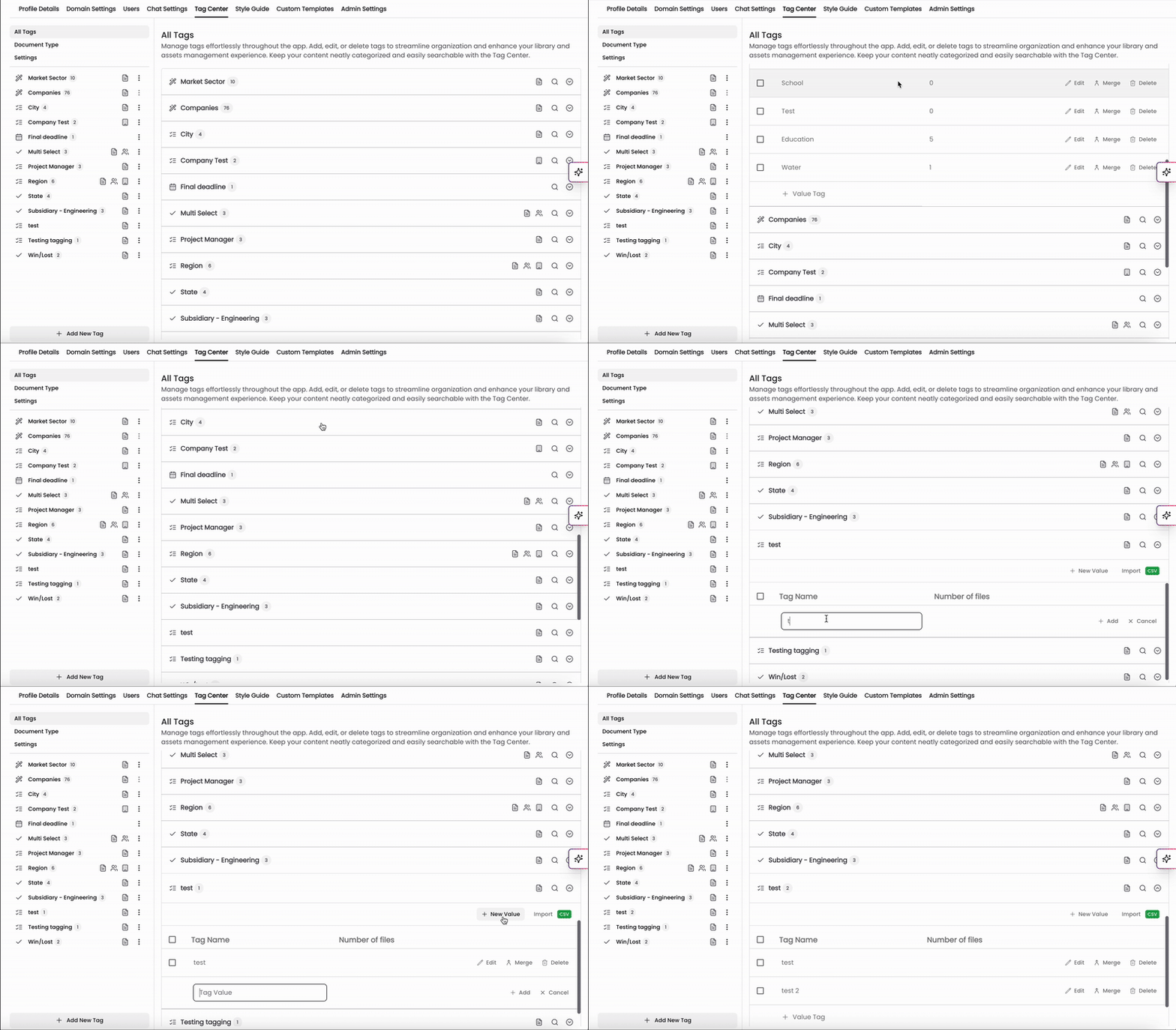
The All Tags menu contains a list of all of your tags categorized into groups. On this page, you can:
View your tag groups and expand them to view individual tags in each of these groups
Add new tags and tag groups, and edit, merge, or delete existing tags
Import tags in bulk via CSV
For more information on tags, check out the articles below:
Managing Tags: Best practices and more information on adding, editing, and organizing your tags.
Applying Tags to Files and Filtering via Tags: Steps on how to apply tags onto your files and filter via existing tags.
Document Type
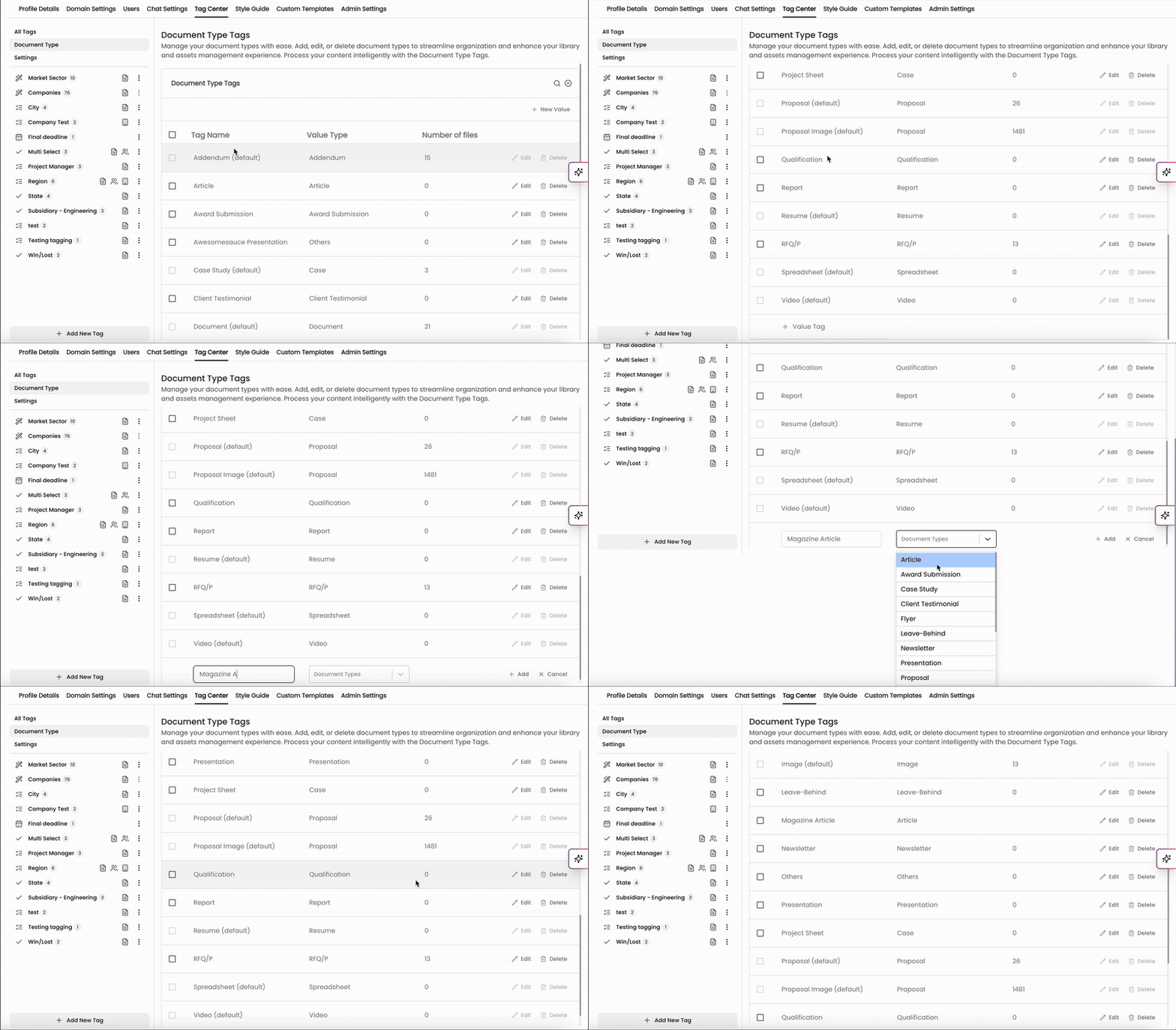
In the Document Type menu, you can manage all your document types that are applied onto your uploaded files. This will help our system categorize your documents when they're uploaded.
Please note that your Kantiv account will come with document types pre-installed by default and some cannot be removed from your list.
For more information on managing document types, check out this article.
Settings
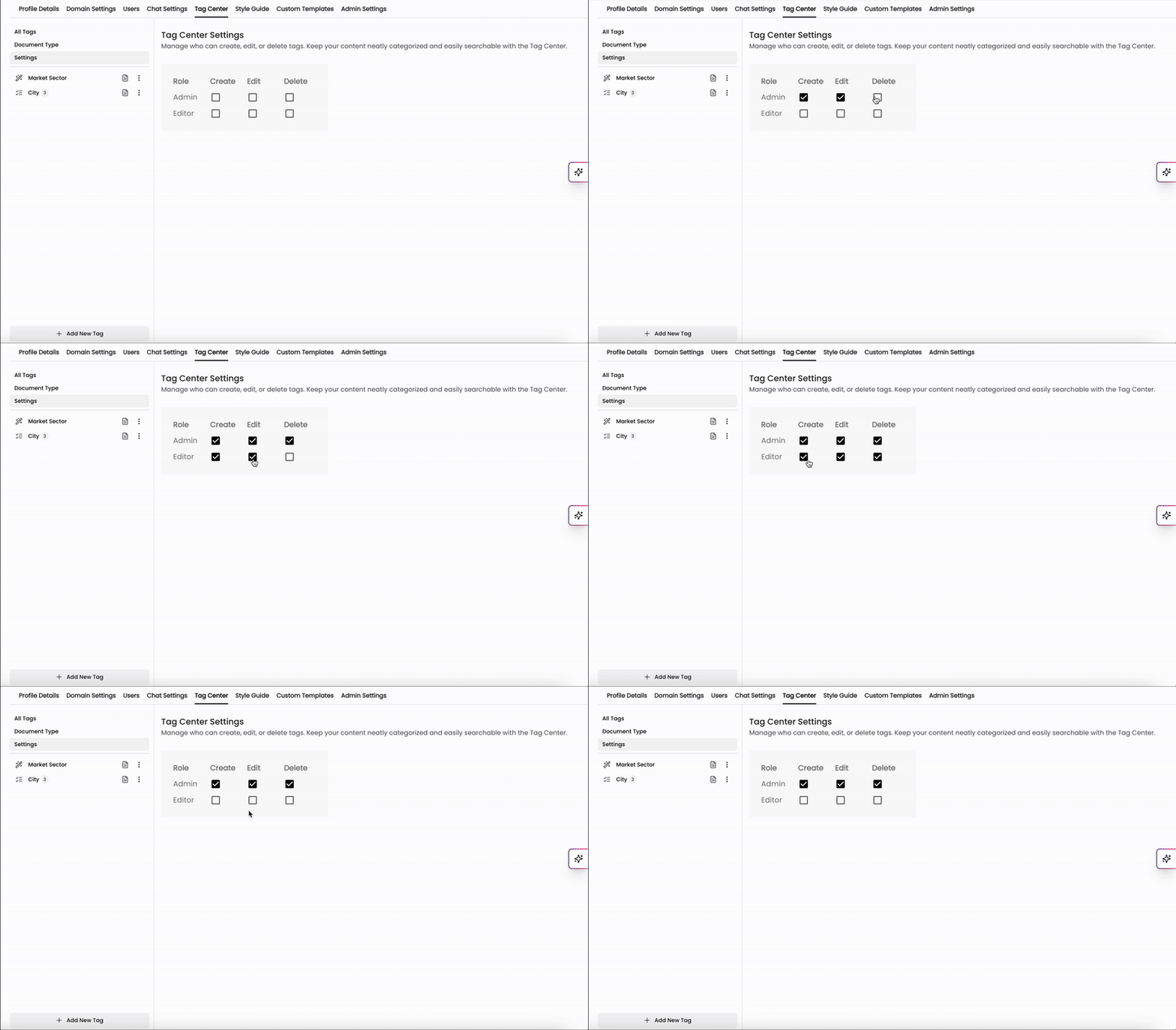
In the settings page, you can manage who can contribute to the Tag Center. You can toggle the create, edit, and/or delete boxes to give or remove access for Admins or Editors in your organization.
Check out this article for more information on roles in Kantiv.
Benefits of Using the Tag Center
Improved Searchability: Tags enable precise search results, making it easier to find documents quickly.
Enhanced Organization: Keep your content neatly organized by categorizing it based on relevant criteria.
Simplified Management: Easily update and manage tags as your content library grows and evolves.
Best Practices
Regularly review and update your tags to ensure they reflect the current structure of your content.
Use consistent naming conventions for tags to maintain uniformity.
Leverage subcategories and custom tags to create a more granular content organization.
By effectively using the Tag Center, you can maintain a well-organized content library, making it easier for your team to locate and utilize content efficiently.
You can always find more information on Settings and Customization in our Support Center. Please send any questions or feedback to Support@Kantiv.com.